Chat Checkin
Your chat puts itself on the map.
Viewers type !checkin and a city. A pin drops on a spinning globe on your stream, with their name on it. By the end of the night you can see where your whole chat is watching from.
Works with
What your chat does
One command. Three things happen.
-
quietfox: hi chatpixelmoth: !checkin Lisbon
A viewer types a city
Any city in the world. Typos are fine.
-
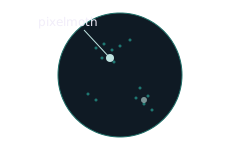
A pin drops with their name
The bot confirms it in chat.
-
14checkins9countries
Farthest from you: tea_and_raids, 18,173 km
Chat races to be farthest from you
The record is the one to beat.
"Farthest" is measured from your home location. Set it in Settings > Integrations > Chat Checkin.
Why streamers use it
It visualises your viewers on a globe.
See where your chat watches from
Every checkin is a pin with a name on it. One look at the globe shows you your audience, city by city.
A ritual for the start of stream
The globe starts empty when you go live, and chat fills it back up. Regulars race to be the first pin of the night.
Your chat meets itself
Two viewers find out they live in the same city. Someone sees a pin from a country they never expected.
Safe for your viewers
A pin is only ever a city. The globe doesn't know anything smaller, so nobody can put a street address on your stream, even on purpose.
Make it yours
Just the globe, or the whole scoreboard.
Two switches on the overlay decide what shows next to the globe. Flip them any time and OBS updates while you watch.
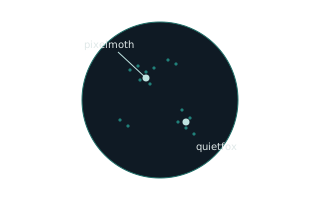
Globedefault
The spinning globe and a name on every pin. Nothing else on screen.
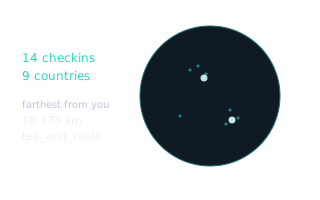
Globe and numbers
Adds the checkin and country count for this stream, and who came from farthest away.
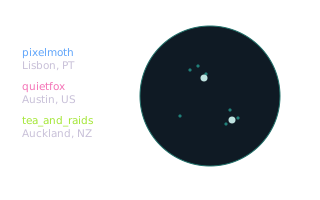
Globe and who checked in
Adds a running list of names and cities, newest at the top.
Ready in three steps
From this page to your stream.
Every step is a button on the next page. You never have to go looking for a setting.
-
1
Get Chat Checkin
Log in with Twitch. One click puts it in your account.
-
2
Switch on the bot
One button turns on the Overlabels bot, which reads
!checkinin your chat. Type/mod overlabelsin your chat so it can reply. -
3
Add it to OBS
Copy one link into a Browser Source. Streamlabs Desktop and any other app with a browser source work the same way.
Checkins only open while you are live. If someone tries while you're offline, the bot tells them, so nobody wonders whether it worked.
Questions
Before you click.
What if they spell the city wrong?
It still lands. The globe knows about 235,000 cities and forgives typos, so "amsterdamm" ends up in Amsterdam. Bare "Paris" is Paris, France, and "Paris, US" is Paris, Texas. If a place really can't be found, the bot says so.
Do my viewers need to sign up for anything?
No. They type in your Twitch chat, like any other chat command.
Does it show where my viewers live?
Only the city they type, and they can type any city they like. The globe knows cities and nothing smaller, so a street address can never end up on your stream.
What if someone checks in twice?
Each viewer has one pin. Checking in again moves it to the new city.
Can I change how it looks?
Switch the numbers and the list of names on or off from the overlay's Controls tab. The globe's colours, size and spin speed can be changed too if you know a little CSS.
Is it really free?
Yes. Overlabels has no tiers, no trial and no card to enter. Every product is free.
Can I remove it later?
Yes. One button on the product's page removes it and everything it installed.
Put your chat on the map tonight.
Free. Three steps.
Works with
More things your chat can do